

Best project management software for Small Business: A Detailed Zoho Projects Review for Growing Teams
Introduction: Why Small Businesses Need Better Project Management
Running a small business is not simple. Even when the team is small, the work can quickly become complicated.
There are client deadlines to manage, internal tasks to track, team members to coordinate, files to review, meetings to attend, invoices to prepare, and progress updates to send. Many businesses begin by using spreadsheets, emails, WhatsApp messages, Google Docs, sticky notes, or simple to-do lists. These tools may work at first, but they usually become difficult to manage as the business grows.
This is where project management software becomes important.
The best project management software for small business should help teams plan work, assign responsibilities, track deadlines, manage time, collaborate, automate repetitive tasks, and get visibility into project progress.
One tool that stands out in this category is Zoho Projects.
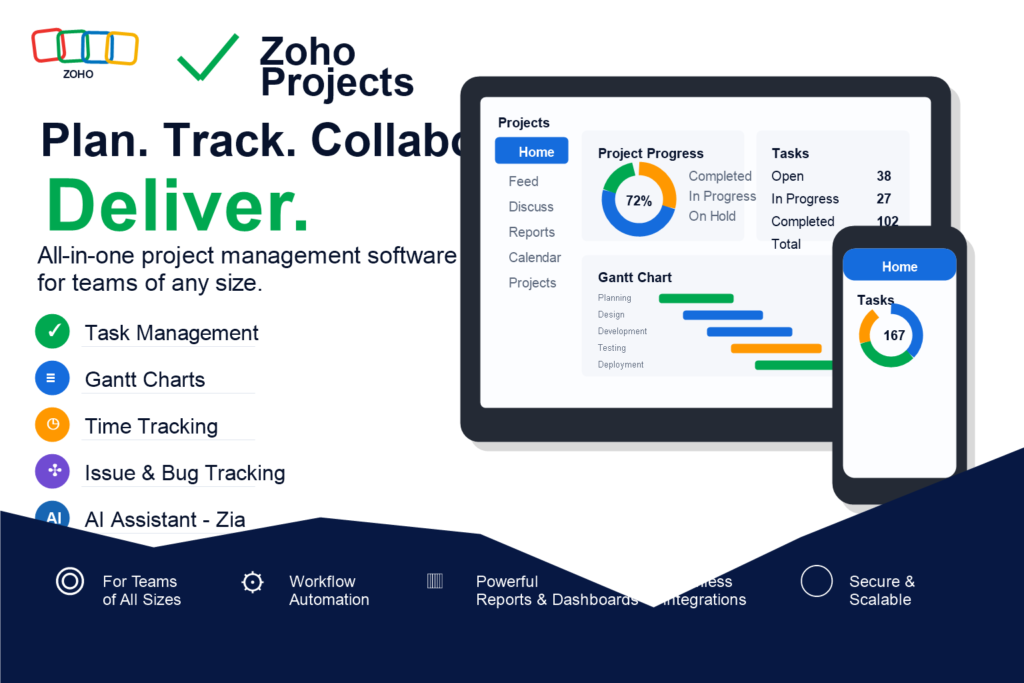
Zoho Projects is an affordable, feature-rich project management platform built for teams that want to manage projects from start to finish in one place. It includes task management, subtasks, milestones, Gantt charts, time tracking, timesheets, issue tracking, automation, reports, dashboards, integrations, and AI-powered assistance through Zia.
In this detailed Zoho Projects review, we will analyze its features, benefits, pricing, ideal users, strengths, limitations, and how it compares with other Zoho Projects alternatives.
By the end, you should know whether Zoho Projects is the right project management software for your small business.
What Is Zoho Projects?
Zoho Projects is an online project management software designed to help teams plan, organize, track, and complete projects more efficiently.
It gives businesses a central workspace where they can manage:
- Projects
- Tasks
- Subtasks
- Milestones
- Deadlines
- Dependencies
- Timesheets
- Issues and bugs
- Documents
- Reports
- Team collaboration
- Workflow automation
- Cross-project visibility
Instead of managing work across multiple disconnected apps, Zoho Projects brings the most important project management tools into one platform.
This is especially useful for small businesses that need structure but do not want to pay enterprise-level prices.
Zoho Projects can be used by many types of teams, including marketing agencies, software companies, consultants, construction teams, design teams, remote teams, operations departments, IT teams, and professional service businesses.
Best For
Zoho Projects is best for teams of all sizes, from startups to enterprises, looking for an all-in-one project management solution to plan, track, and collaborate on projects efficiently.
It is especially useful for:
- Small businesses that need affordable project management software
- Startups that want to organize fast-moving work
- Agencies managing multiple client projects
- Software teams that need tasks, bugs, and releases in one place
- Consultants tracking billable hours
- Remote teams that need centralized collaboration
- Growing companies that need scalable workflows
- Businesses already using Zoho CRM, Zoho Books, Zoho Desk, or other Zoho apps
Why Zoho Projects Is a Strong Choice for Small Business
Small businesses usually need software that is powerful but not too expensive. They need flexibility, but they also need simplicity. They need collaboration tools, but they do not want to manage too many different platforms.
Zoho Projects fits this need because it offers a strong balance of:
- Affordability
- Project planning
- Task management
- Gantt charts
- Time tracking
- Automation
- Reporting
- Issue tracking
- Customization
- Integrations
- AI support
This makes it one of the best options for businesses that want to improve productivity without overcomplicating their software stack.
Key Features of Zoho Projects
1. Customizable Modules, Dashboards, and Reports
One of the most valuable parts of Zoho Projects is customization.
Every business manages work differently. A marketing agency may need campaign stages. A software team may need sprint planning and bug tracking. A consulting firm may need client deliverables and billable hours. A construction company may need phases, vendors, site tasks, and approvals.
Zoho Projects allows teams to customize modules, dashboards, fields, workflows, and reports so the platform can match their business process.
This is important because many project management tools force businesses to work in a fixed structure. Zoho Projects gives teams more control over how their project information is organized.
Why This Matters
Customization helps businesses avoid software friction. When a tool matches the way a team already works, adoption becomes easier.
For example, a small agency can create custom fields for:
- Client name
- Campaign type
- Priority level
- Approval status
- Budget range
- Delivery date
- Assigned department
A software company can create fields for:
- Bug severity
- Sprint number
- Release version
- QA status
- Developer assigned
- Product area
This flexibility makes Zoho Projects useful for different industries, not just one type of team.
2. Task Management With Subtasks, Dependencies, and Recurring Tasks
Task management is the foundation of Zoho Projects.
Teams can create tasks, assign them to users, set due dates, add priorities, create subtasks, link dependencies, and repeat recurring tasks.
This helps break large projects into smaller, manageable steps.
For example, instead of creating one broad task like “Launch website,” a team can break it down into:
- Research competitors
- Create sitemap
- Write homepage copy
- Design homepage mockup
- Develop homepage
- Test mobile responsiveness
- Connect analytics
- Review SEO settings
- Launch website
Each task can be assigned to the right team member with clear deadlines and dependencies.
Why This Matters
Without clear task management, small teams often lose time asking:
- Who is responsible?
- What is the deadline?
- What should happen next?
- Has this been approved?
- Is this task blocked?
- Did someone already complete this?
Zoho Projects reduces this confusion by creating a clear workflow.
3. Gantt Charts With Critical Path and Baseline Tracking
Zoho Projects is a strong option for businesses searching for project management software with Gantt charts.
Gantt charts help teams visualize project timelines. They show how tasks connect, when each task starts and ends, and which tasks depend on others.
This is especially helpful for projects with multiple phases or strict deadlines.
Zoho Projects also includes Critical Path and Baseline tracking.
Critical Path
Critical Path helps identify the tasks that directly affect the project deadline. If one of these tasks is delayed, the entire project may be delayed.
This is valuable for managers because it shows which tasks need the most attention.
Baseline Tracking
Baseline tracking allows teams to compare the original project plan with actual progress. This helps managers understand whether the project is ahead, on schedule, or behind.
Why This Matters
For small businesses, delays can be costly. A missed client deadline can damage trust. A delayed product launch can affect revenue. A late internal project can create operational problems.
Gantt charts help businesses manage timelines more professionally.
4. Pre-Defined Industry Templates
Zoho Projects includes pre-defined project templates that help teams start faster.
Instead of building every project from scratch, businesses can use templates for common project types.
This is useful for small teams that do not have time to design workflows manually.
Example Use Cases
A digital marketing agency can create templates for:
- SEO campaign
- Website redesign
- Social media campaign
- Email marketing campaign
- PPC campaign setup
A consulting firm can create templates for:
- Client onboarding
- Business audit
- Strategy project
- Monthly reporting
- Implementation plan
A software company can create templates for:
- Product release
- Bug fix cycle
- Feature development
- QA testing
- App launch
Why This Matters
Templates save time, improve consistency, and reduce mistakes.
When teams repeat similar projects, templates make sure important steps are not forgotten.
5. Time Tracking and Multi-Level Timesheet Approvals
Zoho Projects includes built-in time tracking, making it a good choice for businesses looking for project management software with time tracking.
Team members can log time manually or use timers. Managers can review timesheets and approve them through multi-level approval workflows.
This is especially valuable for:
- Agencies
- Freelancers
- Consultants
- IT service providers
- Legal service firms
- Accounting firms
- Client-service businesses
Why Time Tracking Matters
Time tracking helps businesses understand how work is being done.
It can answer important questions like:
- How much time are we spending on each project?
- Which tasks take longer than expected?
- Are we undercharging clients?
- Which clients require the most time?
- Are employees overloaded?
- Are projects profitable?
For service-based businesses, time tracking can directly impact revenue.
If a business does not track billable time accurately, it may lose money without realizing it.
6. Built-In Bug Tracker and Issue Management
Zoho Projects includes issue tracking, which makes it valuable for software teams, IT teams, product teams, and operations teams.
Instead of using a separate bug tracking tool, teams can manage issues inside the same platform where they manage projects and tasks.
Users can report bugs, assign them to team members, set priorities, track status, and monitor resolution.
Why This Matters
For software and technical teams, bugs are part of the project lifecycle.
If bugs are tracked separately from project work, communication can become fragmented.
Zoho Projects helps connect issue management with project timelines, making it easier to see how bugs affect delivery.
7. Workflow Automation With Blueprints and Macros
Automation is one of the strongest reasons to consider Zoho Projects.
Small businesses often waste time on repetitive manual work. This includes assigning tasks, sending reminders, updating statuses, requesting approvals, and notifying team members.
Zoho Projects helps automate these actions with Blueprints, workflow rules, and macros.
Example Automations
A team can automate:
- Task assignment when a project stage changes
- Notifications when a deadline is approaching
- Approval requests for time logs
- Status updates when a task is completed
- Escalations when a task is overdue
- Follow-up tasks after client approval
- Bug assignment based on severity
Why This Matters
Automation reduces manual work and human error.
For small businesses, this is a major benefit because teams often have limited staff. Automation helps them operate more efficiently without hiring additional managers or coordinators.
8. Portfolio Dashboard for Cross-Project Visibility
As a business grows, managing one project is not enough. Teams may need to manage multiple projects across different clients, departments, or business units.
Zoho Projects includes portfolio-level visibility so managers can track multiple projects from one dashboard.
This helps business owners and project managers understand:
- Which projects are active
- Which projects are delayed
- Which projects are at risk
- Which teams are overloaded
- Which clients need attention
- Which deadlines are approaching
Why This Matters
Small businesses often struggle when they move from managing a few projects to managing many projects.
A portfolio dashboard helps leaders avoid surprises and make better decisions.
9. AI Assistant Zia for Task Creation, Summaries, and Insights
Zoho Projects includes AI-powered features through Zia.
This makes it relevant for businesses searching for AI project management software.
Zia can help teams create tasks, summarize information, generate insights, and improve productivity.
Why AI Matters in Project Management
Project teams generate a lot of information:
- Task updates
- Comments
- Time logs
- Documents
- Reports
- Status changes
- Client feedback
- Issue reports
AI helps teams understand this information faster.
Instead of manually reviewing long project threads or reports, users can get summaries and insights more quickly.
This can help managers save time and make better decisions.
10. Integrations With Zoho, Microsoft, Google, and More
Zoho Projects integrates with the broader Zoho ecosystem and many third-party tools.
This includes Zoho apps, Microsoft tools, Google tools, and other business platforms.
For businesses already using Zoho products, this is a major advantage.
Useful Zoho Integrations
Zoho Projects can fit naturally with tools such as Zoho CRM, Zoho Books, Zoho Invoice, Zoho Desk, Zoho Analytics, Zoho Mail, Zoho People, and Zoho Sprints. The value is not simply that these apps belong to the same software family. The real benefit is that project work can connect to sales, finance, support, reporting, communication, HR, and agile delivery workflows without forcing teams to copy information manually between disconnected systems.
Zoho CRM
Zoho CRM is useful when project delivery begins after a sale closes. For example, a small agency, consultant, software provider, or implementation partner may manage prospects in Zoho CRM, close a deal, and then need to turn that customer relationship into a delivery project.
When Zoho Projects is used alongside Zoho CRM, teams can create a cleaner handoff between sales and operations. Sales teams can capture the customer context, expected scope, contact details, deal value, and promised outcomes. Delivery teams can then use Zoho Projects to manage tasks, milestones, owners, deadlines, time logs, and project communication.
This helps reduce one of the most common small-business problems: the gap between what was sold and what the delivery team actually receives. Instead of relying on scattered email threads or verbal handoffs, the business can build a more consistent sales-to-project workflow.
Zoho Books
Zoho Books is useful for businesses that need accounting, billing, expense tracking, and financial visibility. When project work connects to financial data, managers can better understand whether projects are profitable, not just whether tasks are completed.
For service businesses, this matters a lot. A client project may look successful because the deliverables were completed, but it may still be unprofitable if the team spent too many hours, underestimated the scope, or failed to track billable work accurately.
Using Zoho Projects with Zoho Books can help small businesses connect project execution with financial management. Teams can review time spent, compare work against budget expectations, and support better billing or cost analysis.
Zoho Invoice
Zoho Invoice is especially relevant for freelancers, consultants, agencies, and professional service teams that bill clients for project work.
Zoho Projects includes time tracking, and that time data can become more valuable when it supports invoicing. For example, a consultant can log time against tasks, review billable hours, and use that information to prepare cleaner invoices.
This reduces the risk of underbilling. It also gives clients clearer visibility into the work being charged. For small businesses, accurate invoicing is not just an admin task; it directly affects cash flow.
Zoho Desk
Zoho Desk is useful when customer support issues need to become project tasks, bug fixes, implementation work, or follow-up actions.
For example, a customer may submit a support ticket about a recurring product issue. If that issue requires deeper investigation, development work, or a coordinated internal response, the team may need to manage it as project work rather than leaving it inside a support queue.
Connecting support and project workflows helps teams avoid losing important customer problems between departments. Support teams can capture the issue, while project or product teams can plan the actual resolution.
Zoho Analytics
Zoho Analytics is useful when leadership needs deeper reporting than a basic project dashboard can provide.
Zoho Projects already includes reports and dashboards, but some businesses need broader analysis across projects, finance, sales, support, and operations. Zoho Analytics can help turn project data into more detailed business intelligence.
Useful reporting questions may include:
- Which clients require the most delivery time?
- Which project types are most profitable?
- Which teams are overloaded?
- Which project stages create the most delays?
- How does project performance compare with sales pipeline data?
- Are support issues increasing after specific project types?
For growing businesses, this kind of reporting can improve planning, pricing, staffing, and operational decision-making.
Zoho Mail
Zoho Mail is useful for teams that want communication to stay connected to project work.
Email is still where many business conversations happen. Clients send approvals, team members share updates, vendors ask questions, and managers request status changes. The problem is that email alone does not create structured accountability.
When project teams use Zoho Mail alongside Zoho Projects, email conversations can support project execution instead of replacing it. Important decisions, files, and updates can be connected back to tasks, milestones, or project records where the team can act on them.
The goal is not to eliminate email. The goal is to prevent email from becoming the only project management system.
Zoho People
Zoho People is useful when project work connects to employee data, attendance, leave, workload, or HR processes.
For small businesses, staffing is often one of the biggest project constraints. A project may fall behind not because the team lacks software, but because the right person is unavailable, overloaded, on leave, or assigned to too many competing priorities.
Using Zoho People alongside Zoho Projects can help managers think more clearly about capacity. It can support better planning around team availability, employee records, time-off visibility, and workload decisions.
This is especially valuable for agencies, service firms, IT teams, and operations departments where people are the main delivery resource.
Zoho Sprints
Zoho Sprints is useful for agile teams that need sprint planning, backlog management, user stories, and iterative software delivery.
Zoho Projects can manage software tasks and issues, but some development teams need a more agile-focused workflow. Zoho Sprints is designed for teams that work in sprints, manage backlogs, estimate stories, and review progress in agile cycles.
For software teams, Zoho Projects and Zoho Sprints can serve different but related purposes. Zoho Sprints can support agile development execution, while Zoho Projects can support broader project planning, client implementation, cross-functional milestones, documentation, approvals, and reporting.
This combination can be useful when technical work is only one part of a larger business project.
Why This Matters
Many businesses use too many separate tools. When tools do not connect, teams waste time copying information manually.
Integrations reduce duplicate work and help create a smoother business workflow.
For example:
- Sales teams can connect deals from Zoho CRM to project delivery.
- Finance teams can connect billable hours to invoicing.
- Support teams can connect customer issues to project work.
- Managers can analyze project data with reporting tools.
This makes Zoho Projects especially attractive for businesses already using Zoho.
Main Benefits of Zoho Projects
1. End-to-End Project Visibility
Zoho Projects gives managers visibility from planning to delivery. This is one of the biggest advantages for small businesses because many project problems are not caused by a lack of effort. They are caused by a lack of visibility.
When project information is spread across email threads, chat messages, spreadsheets, notes, and individual memory, managers have to chase updates manually. Team members may know their own tasks, but they may not know how their work affects the full project. Business owners may only hear about problems after deadlines have already slipped.
Zoho Projects helps solve this by creating one central place for project status, assignments, deadlines, dependencies, files, comments, time logs, issues, and reports.
This means teams can see the full project lifecycle in one place:
- Planning: Teams can define the project scope, milestones, timelines, dependencies, and expected outcomes before work begins. This gives managers a clearer picture of what needs to happen, when it should happen, and which tasks may affect the final deadline.
- Task creation: Large projects can be broken into smaller tasks and subtasks. Instead of leaving work as vague goals, Zoho Projects helps teams document specific actions, due dates, priorities, descriptions, files, and owners.
- Assignment: Every task can have a clear owner. This reduces confusion about responsibility and helps managers see whether work is distributed fairly across the team.
- Collaboration: Team members can discuss tasks, share updates, attach files, leave comments, and keep project communication connected to the actual work. This is much cleaner than searching through long email threads or scattered chat messages.
- Time tracking: Teams can log the time spent on tasks and projects. This is useful for billing, estimating future work, reviewing employee workload, and understanding which projects take more effort than expected.
- Issue tracking: Bugs, blockers, client concerns, technical issues, and delivery problems can be captured in the same workspace. This helps teams see how issues affect deadlines, workload, and project quality.
- Reporting: Managers can review dashboards and reports to understand progress, overdue work, time usage, project health, and team workload. Reporting turns project activity into information leaders can actually use.
- Completion: Teams can close tasks, confirm deliverables, review final outcomes, document lessons learned, and create a clearer record of what was delivered. This helps improve future projects and keeps completed work organized.
Each stage gives the business a different kind of control. Planning creates direction. Task creation turns direction into action. Assignment creates accountability. Collaboration keeps the team aligned. Time tracking shows effort and cost. Issue tracking highlights risk. Reporting supports better decisions. Completion creates a record of delivery.
This reduces confusion and helps businesses stay organized. It also makes project conversations more specific. Instead of asking broad questions like “Where are we on this project?” managers can review the actual task list, timeline, overdue work, open issues, and upcoming milestones.
What This Looks Like in Practice
For a small agency, end-to-end visibility means the owner can see whether a client website project is still in content writing, design review, development, QA, or launch preparation.
For a consulting firm, it means the project manager can see which research tasks are complete, which deliverables are waiting for client approval, and whether billable time is tracking within budget.
For a software team, it means developers, QA, support, and managers can see how bugs, tasks, and milestones connect to the release schedule.
Why Visibility Matters for Small Businesses
Visibility helps small businesses:
- Catch delays earlier
- Reduce repeated status meetings
- Avoid duplicated work
- Improve accountability
- See who owns each task
- Understand which projects are at risk
- Make better staffing decisions
- Keep client communication more accurate
The main benefit is control. A business cannot manage what it cannot see. Zoho Projects gives teams a clearer view of the work before small problems become expensive problems.
2. Flexible Customization for Bespoke Projects
Some businesses have simple projects. Others have complex workflows with approvals, dependencies, custom fields, and multiple departments.
Zoho Projects supports both.
Its customization options make it suitable for bespoke projects that need a more personalized structure. This matters because small businesses rarely work in one standard pattern. A marketing agency, construction contractor, software company, legal consultant, accounting firm, and IT service provider may all need project management, but they do not track the same information.
Zoho Projects can be adjusted with custom fields, custom statuses, project templates, task layouts, dashboards, modules, workflows, and reports. This lets businesses shape the system around the way they actually deliver work.
Examples of Useful Customization
A marketing agency may track:
- Client name: This helps the agency filter work by account and quickly see all active tasks, campaigns, approvals, and deliverables for one client.
- Campaign type: A project can be tagged as SEO, PPC, email marketing, social media, website design, content marketing, or brand strategy. This makes it easier to compare similar projects and build repeatable templates.
- Channel: Agencies often manage work across Google Ads, Meta, LinkedIn, TikTok, email, blog content, landing pages, and organic search. Tracking the channel helps teams assign the right specialists and report performance more clearly.
- Approval status: Creative and marketing work often depends on review cycles. A custom approval field can show whether an asset is in draft, internal review, client review, approved, rejected, or ready to publish.
- Content owner: This identifies who is responsible for writing, design, editing, publishing, or final review. It reduces confusion when multiple people touch the same campaign.
- Launch date: Campaigns are deadline-sensitive. Tracking launch dates helps managers see whether creative, copy, targeting, tracking, and approval work are moving fast enough.
- Budget range: A budget field helps teams separate small tasks from high-value campaigns. This can guide prioritization, reporting detail, and resource allocation.
For a marketing agency, these fields make Zoho Projects more than a task list. They help the team understand which client the work belongs to, what kind of campaign is being delivered, who owns each step, and whether the campaign is on track for launch.
For example, a social media campaign template could include tasks for strategy, creative brief, copywriting, design, client review, scheduling, publishing, and reporting. Custom fields would show the channel, approval status, launch date, content owner, and budget range. This gives account managers a clear view of campaign health without asking every team member for separate updates.
Here is what that could look like inside a real agency workflow:
- Client name: Brightline Dental
- Campaign type: Local SEO campaign
- Channel: Google Business Profile, blog content, and local landing pages
- Approval status: Client review
- Content owner: SEO strategist
- Launch date: July 15
- Budget range: $2,000 to $5,000
With this structure, the account manager can instantly see that the campaign is not ready to launch because it is still waiting on client approval. The SEO strategist can see ownership. The business owner can see the budget range and deadline. The team does not need to search through email to understand the campaign status.
For agencies, customization is especially helpful because client work is repetitive but not identical. One client may need a website redesign, another may need paid ads, and another may need monthly SEO. Custom fields help the agency keep those workflows organized without creating a completely separate system for every client.
A software team may track:
- Bug severity: Teams can label issues as low, medium, high, or critical. This helps developers and managers decide which bugs should be fixed first.
- Sprint: If the team works in agile cycles, a sprint field shows which tasks or bugs belong to the current sprint, next sprint, or backlog.
- Release version: This connects tasks and issues to a specific product release, such as version 1.4, version 2.0, or a named launch.
- QA status: A QA field can show whether an item is ready for testing, in testing, failed QA, passed QA, or ready for release.
- Product area: Software products often have multiple modules, such as billing, dashboard, authentication, reports, integrations, or mobile app. Product area tracking helps route work to the right owner.
- Developer owner: This identifies the engineer responsible for the task, bug, or technical investigation.
- Deployment date: This helps the team connect development work to planned releases, maintenance windows, and customer-facing updates.
For a software team, these fields help connect product planning, engineering execution, QA, and release management. Instead of treating every task the same, the team can distinguish between feature work, technical debt, bug fixes, QA failures, and release-blocking issues.
For example, a bug may be tagged as high severity, assigned to the authentication product area, linked to sprint 12, marked as failed QA, and scheduled for deployment in the next patch release. That gives the team much more context than a generic task title like “Fix login issue.”
A practical software project record might look like this:
- Bug severity: High
- Sprint: Sprint 12
- Release version: 2.4.1
- QA status: Failed QA
- Product area: Authentication
- Developer owner: Backend developer
- Deployment date: June 28
This tells the team that the issue is important, already connected to a sprint, not yet ready for release, and tied to a specific product area. A project manager can immediately see that the deployment date may be at risk if QA does not pass.
Software teams can also use custom fields to separate different kinds of work. A new feature, a production bug, a security fix, a UI improvement, and technical debt should not always be managed the same way. Custom fields make it easier to filter and prioritize the work that matters most.
For example:
- Feature requests can be grouped by product area.
- Bugs can be sorted by severity.
- QA tasks can be filtered by testing status.
- Release tasks can be grouped by deployment date.
- Technical debt can be reviewed separately from urgent customer issues.
This helps managers make better decisions about what should be fixed now, what can wait, and what must be included before a release goes live.
A consulting business may track:
- Client stakeholder: Consulting projects often involve multiple decision-makers. Tracking the stakeholder helps the team know who must approve work, attend meetings, or provide information.
- Contract stage: A project may be in proposal, kickoff, discovery, delivery, review, renewal, or closeout. This helps consultants see where each client engagement stands.
- Deliverable type: Consultants may deliver audits, strategy documents, training sessions, implementation plans, dashboards, workshops, or monthly reports. Tracking deliverable type helps standardize work.
- Review date: Consulting work often depends on scheduled review meetings. A review date field helps the team prepare materials and avoid last-minute updates.
- Billable status: Tasks can be marked billable, non-billable, included in retainer, out of scope, or internal. This supports better billing and profitability analysis.
- Risk level: A risk field helps consultants flag projects that may miss deadlines, exceed scope, depend on slow client feedback, or require senior review.
- Follow-up requirement: Consulting work usually creates next steps. This field can show whether a client needs a proposal, meeting summary, implementation task, renewal conversation, or additional support.
For a consulting business, customization helps protect scope, profitability, and client communication. It gives the team a structured way to manage both the work itself and the business context around the work.
For example, a strategy project may include a discovery call, research phase, draft report, client review, final presentation, and follow-up implementation plan. Custom fields can show the client stakeholder, deliverable type, review date, billable status, and risk level. This makes it easier to manage expectations and avoid unpaid scope creep.
A consulting project record might look like this:
- Client stakeholder: Operations Director
- Contract stage: Delivery
- Deliverable type: Workflow audit
- Review date: July 8
- Billable status: Included in retainer
- Risk level: Medium
- Follow-up requirement: Implementation proposal
This gives the consulting team a quick view of the business situation around the project. The work is already in delivery, the next review date is known, the task is included in the retainer, and the team expects a follow-up proposal after the audit.
This kind of customization helps consultants protect margins. Without fields like billable status, contract stage, and follow-up requirement, teams may do extra work without realizing it is outside the original scope. With clearer project data, consultants can discuss scope changes earlier and keep client expectations aligned.
Consulting teams can also use custom fields for account growth. If a completed project creates a follow-up opportunity, that follow-up can be tracked instead of forgotten after the final meeting.
These examples show why customization matters. A generic task list may tell a team what needs to be done, but customized project data explains the business context around the work. That context helps teams prioritize, report, automate, and improve their process over time.
How to Build Customization Without Overcomplicating Zoho Projects
The best customization strategy is to start small. A business does not need twenty custom fields on day one. Too many fields can make task updates feel slow and discourage team adoption.
A better approach is to begin with five questions:
- What information do we ask for repeatedly?
- What information helps us prioritize work?
- What information helps managers report progress?
- What information helps us avoid mistakes?
- What information supports billing, approvals, or client communication?
If a field does not support one of those needs, it may not be necessary.
Recommended Starter Fields
For most small businesses, a practical starting setup might include:
- Project type
- Priority
- Owner
- Due date
- Approval status
- Client or department
- Risk level
- Billable status
These fields are simple, but they create useful structure. They help teams filter tasks, review deadlines, identify high-risk work, and understand which projects affect revenue.
When to Add More Custom Fields
Add more fields only when a real workflow problem appears. For example:
- If managers cannot tell which client a task belongs to, add a client field.
- If work is delayed by approvals, add an approval status field.
- If billing is unclear, add a billable status field.
- If launch dates are missed, add a launch date or release date field.
- If teams are overloaded, add owner and workload reporting fields.
This keeps Zoho Projects useful without turning it into a complicated data-entry system.
The goal of customization is clarity. The right fields should help people understand the work faster, not slow them down.
Why Customization Helps Adoption
Teams are more likely to use a tool when it reflects their real workflow. If project management software forces every business into the same generic structure, team members often work around it with side spreadsheets and private notes.
Customization reduces that friction. It helps Zoho Projects become a practical workspace rather than a rigid task database.
The caution is that customization should be intentional. Too many fields, statuses, and workflows can make the system harder to use. The best approach is to start with the information that improves decisions, reporting, accountability, or automation.
3. Reduced Context-Switching
One of the biggest productivity killers is switching between too many tools.
A team may use one app for tasks, another for chat, another for files, another for timesheets, and another for reports.
Zoho Projects reduces this by bringing many project management functions into one platform.
This helps teams stay focused. Instead of jumping between separate systems to understand what is happening, team members can manage more of the project workflow inside one environment.
Context-switching creates hidden costs. Every time a team member moves from email to spreadsheet to chat to calendar to timesheet to document folder, attention is lost. Important information can also get buried in the wrong place.
Zoho Projects helps reduce this by connecting:
- Tasks: The team can see the actual work that needs to be completed, who owns it, when it is due, and what status it is in. This reduces the need to ask for basic updates in chat or email.
- Subtasks: Larger pieces of work can be broken into smaller steps. This helps managers see progress more accurately instead of treating a complex deliverable as either “not started” or “done.”
- Deadlines: Due dates stay attached to the work itself. Team members can see what is urgent, managers can spot overdue tasks, and project owners can plan around upcoming milestones.
- Files: Documents, creative assets, briefs, screenshots, reports, and reference materials can stay connected to the task or project where they are needed. This reduces time wasted searching through shared drives or old email attachments.
- Comments: Project discussions can happen next to the relevant work. Instead of a decision getting buried in Slack or email, comments can stay attached to the task, issue, or milestone they refer to.
- Time logs: Team members can record how long work takes while staying inside the project workflow. This supports better billing, workload planning, and future estimates.
- Timesheets: Managers can review submitted time in a more organized way. This is useful for approvals, payroll support, client billing, and understanding whether projects are consuming more time than expected.
- Issues: Bugs, blockers, support problems, client concerns, and delivery risks can be tracked without separating them from the rest of the project. This helps teams understand how problems affect deadlines and workload.
- Reports: Reports turn project activity into useful summaries. Managers can review overdue work, completed tasks, time usage, project progress, and team performance without manually building spreadsheets.
- Dashboards: Dashboards give leaders a quick view of project health. Instead of opening every project individually, managers can monitor active work, risks, deadlines, and workload from a central view.
- Automation rules: Repetitive actions such as reminders, assignments, status changes, and approval notifications can happen automatically. This reduces manual follow-up and helps teams follow the same process consistently.
When these pieces are connected, Zoho Projects becomes more than a task board. It becomes the central operating layer for project work. A manager can open one project and understand the tasks, blockers, files, discussions, time spent, and overall progress without switching between five different apps.
Example: How Context-Switching Happens Without a Project Hub
Imagine a small agency managing a website redesign without a central project system.
The project brief may live in Google Docs. Design feedback may be in email. Task assignments may be in Slack. Time tracking may be in a spreadsheet. Bug reports may be in a separate document. Client approvals may be buried in an email thread. Reporting may be manually prepared at the end of the week.
In that setup, the team spends too much time asking:
- Where is the latest file?
- Who approved this?
- Which task is blocked?
- How much time have we spent?
- What changed since the last update?
- Which version are we using?
- Is the client waiting on us or are we waiting on the client?
Zoho Projects reduces this by giving the team one place to organize the work and the context around the work.
Why This Matters Operationally
For a small business, fewer disconnected tools can mean fewer missed updates. A task comment can stay attached to the task. A time entry can stay connected to the project. A bug can stay connected to delivery work. A report can reflect real project data rather than manually updated spreadsheet numbers.
This does not mean Zoho Projects replaces every tool. Teams may still use Slack, Microsoft Teams, Google Workspace, GitHub, or accounting software. The benefit is that Zoho Projects can become the central project hub, so team members know where project truth lives.
This is especially important as a business grows. A team of three people may be able to keep context in memory. A team of fifteen cannot. More clients, more employees, more projects, and more deadlines create more information to manage. If the information is not centralized, project quality starts to depend on who remembers what.
Centralizing project context also helps new team members. When someone joins a project late, they can review tasks, comments, files, and issue history instead of relying on a long verbal explanation. This makes handoffs easier and reduces onboarding friction.
Practical Result
Reduced context-switching can lead to:
- Faster updates: Team members can update task status, add comments, log time, and attach files in one place.
- Fewer lost files: Important documents and assets are easier to find because they are connected to the relevant project or task.
- Less duplicate data entry: Teams do not need to copy the same update into a spreadsheet, email, and chat thread.
- Better accountability: Owners, deadlines, and task history are visible, which makes responsibility clearer.
- Cleaner client communication: Managers can give clients more accurate updates because project information is easier to verify.
- More reliable reporting: Reports can reflect real project activity instead of manually assembled information.
- Less time spent asking for status: Managers can check the workspace before interrupting team members for updates.
- Better handoffs: New team members or backup owners can review the project history and understand what has already happened.
- Lower operational stress: Teams spend less time hunting for context and more time doing the work.
- Stronger project memory: Decisions, comments, files, and changes remain available after meetings end or employees move to other tasks.
For small teams with limited capacity, this can make a meaningful difference.
4. Scales From Small Teams to Enterprise
Zoho Projects can support small teams, growing businesses, and larger organizations.
A business can start with simple task management and later use more advanced features like automation, custom modules, Gantt charts, timesheets, and portfolio dashboards.
This makes it a scalable choice. A common problem with small-business software is that the first tool works well for a few people but starts to break when the business adds more clients, more employees, more projects, or more reporting needs.
Zoho Projects gives businesses room to grow. A small team can begin with basic projects, task lists, deadlines, and simple collaboration. As the company matures, it can add more structure.
How Zoho Projects Can Grow With a Business
Early-stage teams may use:
- Basic task lists
- Due dates
- Simple project templates
- File sharing
- Comments
Growing teams may add:
- Subtasks
- Dependencies
- Gantt charts
- Time tracking
- Timesheet approvals
- Custom fields
- Automation rules
More mature teams may use:
- Portfolio dashboards
- Baseline tracking
- Critical Path
- Advanced reports
- Custom modules
- Role-based permissions
- Cross-project analytics
Why Scalability Matters
Switching project management systems can be disruptive. Teams have to migrate data, retrain employees, rebuild templates, and recreate reporting workflows.
Choosing a tool that can support both current and future needs can reduce that disruption. Zoho Projects is not only for tiny teams, and it is not only for enterprise project offices. It sits in a useful middle ground where a business can start small and expand functionality over time.
5. Strong Automation Reduces Manual Work
Manual work slows teams down.
Zoho Projects helps automate repetitive actions, which can reduce mistakes and improve consistency.
This is especially important for small businesses where every hour matters. Many small teams do not have dedicated project coordinators, operations managers, or admin staff. The same people doing the work are often also responsible for reminders, updates, follow-ups, approvals, and reporting.
Automation can reduce that burden.
Examples of Helpful Automation
Zoho Projects can support automation around:
- Assigning tasks when a project enters a new phase
- Sending notifications when deadlines are near
- Updating task status after an action is completed
- Creating follow-up tasks after approval
- Escalating overdue tasks
- Routing time logs for approval
- Assigning bugs based on severity or category
- Triggering reminders for recurring work
- Standardizing repeated client workflows
Why Automation Improves Consistency
Manual processes depend on memory. If a manager forgets to send a reminder or assign a follow-up task, the workflow may stall.
Automation makes repeated steps more consistent. It helps the business follow the same process every time, even when the team is busy.
This is useful for work such as client onboarding, monthly reports, website launches, software release cycles, support escalations, employee onboarding, and compliance tasks.
Avoiding Automation Overload
Automation should be added carefully. If a workflow is unclear, automating it can create more confusion. The best approach is to automate repetitive steps that already happen consistently.
Start with simple automations, review whether they save time, and then expand.
6. Deep Integration With the Zoho Ecosystem
Businesses already using Zoho tools may get extra value from Zoho Projects because it connects with the wider Zoho ecosystem.
This can help create a more complete business operating system. Zoho offers tools for sales, finance, support, analytics, email, HR, invoicing, agile development, marketing, and operations. Zoho Projects becomes more valuable when project delivery connects to those other functions.
For example:
- A deal can be managed in Zoho CRM before becoming a delivery project.
- Time logs can support billing through Zoho Invoice or Zoho Books.
- Support issues from Zoho Desk can become project tasks or bug fixes.
- Project data can feed broader reporting in Zoho Analytics.
- Employee availability from Zoho People can support better planning.
- Agile software work in Zoho Sprints can connect to broader project delivery.
Why Ecosystem Fit Matters
Small businesses often suffer from tool fragmentation. Sales data lives in one place, accounting in another, customer support in another, and project delivery somewhere else. When these systems do not connect, teams spend time copying updates manually.
Zoho's ecosystem can reduce that fragmentation for businesses that are willing to standardize around Zoho products.
This is one of the biggest strategic reasons to choose Zoho Projects. It is not only a standalone project management tool. It can also become part of a broader business software stack.
Best Fit for Zoho Ecosystem Users
Zoho Projects is especially attractive for businesses that already use:
- Zoho CRM for sales
- Zoho Books for accounting
- Zoho Invoice for billing
- Zoho Desk for support
- Zoho Analytics for reporting
- Zoho People for HR
- Zoho Sprints for agile work
The more your business already relies on Zoho, the stronger the case for Zoho Projects becomes.
Zoho Projects Pricing
Zoho Projects offers flexible pricing for different team sizes.
Free Plan
$0
The free plan supports up to 5 users and 3 projects.
This is useful for very small teams, startups, or businesses testing the platform for the first time.
Premium Plan
$4 per user/month, billed annually
The Premium plan is a good option for small businesses that need more project management features at an affordable price.
Enterprise Plan
$9 per user/month, billed annually
The Enterprise plan is designed for teams that need advanced capabilities, customization, automation, and stronger project control.
Ultimate Plan
$14 per user/month, billed annually
The Ultimate plan is for businesses that need the highest level of Zoho Projects functionality.
Pricing Analysis: Is Zoho Projects Affordable?
Zoho Projects is one of the more affordable project management software options when compared with many popular competitors.
This matters because pricing can become a major issue as teams grow.
For example, a tool that looks affordable for 3 users may become expensive for 20, 50, or 100 users.
Zoho Projects’ pricing makes it attractive for:
- Small businesses with limited budgets
- Agencies managing multiple clients
- Startups watching software costs
- Growing teams that need scalability
- Companies already paying for other Zoho apps
For many small businesses, the Premium plan may be enough to start. Businesses needing deeper automation and customization may prefer Enterprise or Ultimate.
Detailed Use Cases for Zoho Projects
Use Case 1: Marketing Agencies
Marketing agencies manage many moving parts. They handle strategy, content, design, approvals, publishing, reporting, and client communication.
Zoho Projects can help agencies manage:
- Client campaigns
- Content calendars
- Website projects
- SEO projects
- Ad campaigns
- Design tasks
- Client approvals
- Billable hours
- Team workload
The time tracking feature is especially useful for agencies that bill clients based on hours or retainers.
Use Case 2: Software Development Teams
Software teams need task management, bug tracking, releases, dependencies, and collaboration.
Zoho Projects can help software teams manage:
- Feature development
- Bug reports
- QA testing
- Release planning
- Developer workloads
- Technical tasks
- Sprint-related work
- Product updates
The built-in issue tracker is a major advantage for software and IT teams.
Use Case 3: Consultants and Professional Services
Consultants need to manage client work, track billable time, deliver reports, and meet deadlines.
Zoho Projects can help consultants manage:
- Client onboarding
- Research tasks
- Strategy development
- Deliverables
- Meetings
- Time logs
- Reports
- Approvals
For consultants, accurate time tracking can directly improve billing and profitability.
Use Case 4: Remote Teams
Remote teams need clear communication and visibility.
Zoho Projects gives remote teams a central place to track:
- Tasks
- Deadlines
- Updates
- Files
- Discussions
- Responsibilities
- Time logs
- Reports
This reduces the need for constant check-in meetings.
Use Case 5: Operations Teams
Operations teams often manage recurring processes, internal projects, vendor tasks, and cross-department workflows.
Zoho Projects can help operations teams manage:
- Internal process improvement
- Vendor coordination
- Compliance tasks
- Departmental projects
- Recurring work
- Approvals
- Reporting
Automation is especially useful for operations teams that repeat similar processes.
Zoho Projects vs. Spreadsheets
Many small businesses start with spreadsheets. Spreadsheets are flexible, but they are not ideal for managing active projects.
Spreadsheets Are Good For
- Simple lists
- Basic tracking
- Budget calculations
- Static data
Spreadsheets Are Weak For
- Task dependencies
- Real-time collaboration
- Automated reminders
- Time tracking
- Gantt charts
- Approvals
- Project dashboards
- Issue tracking
- Team accountability
Zoho Projects is a better choice when a business needs live project visibility, assignments, deadlines, and collaboration.
Zoho Projects Alternatives
People searching for Zoho Projects alternatives are often comparing it with Asana, Monday.com, ClickUp, Trello, Wrike, Jira, Microsoft Planner, and Smartsheet.
Each tool has strengths.
Asana
Asana is popular for task collaboration and team workflows. It is clean and user-friendly, but advanced features can become expensive.
Monday.com
Monday.com is visual and flexible. It is strong for teams that like dashboards and boards, but pricing can increase as teams scale.
ClickUp
ClickUp offers many features in one platform. However, some users may find it overwhelming because of the number of options.
Trello
Trello is simple and visual. It works well for basic task boards, but may not be enough for complex projects that need Gantt charts, time tracking, and detailed reporting.
Jira
Jira is powerful for software development teams, especially agile teams. However, it may be too technical for non-software businesses.
Smartsheet
Smartsheet is strong for spreadsheet-style project management and enterprise workflows, but it may feel less simple for smaller teams.
Why Choose Zoho Projects?
Zoho Projects is a strong alternative because it combines:
- Affordable pricing
- Task management
- Gantt charts
- Time tracking
- Issue tracking
- Automation
- Reports
- Dashboards
- AI features
- Zoho ecosystem integrations
For businesses already using Zoho, Zoho Projects becomes even more attractive.
Zoho Projects Pros and Cons
Pros
Zoho Projects offers excellent value for small businesses. It includes many advanced project management features at a competitive price.
Its strongest advantages include:
- Affordable pricing
- Free plan available
- Strong task management
- Subtasks and dependencies
- Gantt charts
- Critical Path and Baseline tracking
- Built-in time tracking
- Multi-level timesheet approvals
- Issue and bug tracking
- Workflow automation
- Custom dashboards and reports
- Portfolio-level visibility
- AI assistant features
- Integrations with Zoho, Google, Microsoft, and other tools
- Good scalability for growing teams
Cons
Zoho Projects is powerful, but it may require setup time.
Some small teams may need time to configure workflows, custom fields, reports, automation, and templates.
Possible limitations include:
- Learning curve for advanced features
- May be more than needed for very simple task tracking
- Best value may come when used with other Zoho tools
- Custom setup may require planning
- Teams must commit to using the system consistently
Overall, the pros are stronger than the cons for businesses that need structured project management.
Who Should Use Zoho Projects?
Zoho Projects is a strong fit for businesses that need more than a simple to-do list.
You should consider Zoho Projects if you:
- Manage multiple projects
- Work with clients
- Need task dependencies
- Need Gantt charts
- Track billable hours
- Need timesheet approvals
- Want workflow automation
- Need reports and dashboards
- Manage bugs or issues
- Use other Zoho products
- Want affordable project management software
- Need a tool that can scale as your business grows
Who May Not Need Zoho Projects?
Zoho Projects may not be the best fit for every team.
It may be more than necessary if you only need:
- A very simple personal to-do list
- A basic Kanban board
- A lightweight checklist app
- A tool for one-person task tracking
For very simple needs, tools like Trello, Todoist, or Microsoft To Do may be enough.
But for businesses that want structure, accountability, reporting, time tracking, and automation, Zoho Projects is a stronger long-term choice.
Keyword-Focused Buyer Guide: Why Zoho Projects Fits High-Intent Searches
Best Project Management Software for Small Business
Zoho Projects fits this keyword well because it offers affordability, scalability, and a wide range of features small businesses need.
Zoho Projects Review
A fair Zoho Projects review should recognize that the platform is not just a simple task manager. It is a full project management system with planning, tracking, reporting, collaboration, automation, and AI.
Zoho Projects Pricing
Zoho Projects pricing is one of its biggest competitive advantages. The free plan and affordable paid plans make it attractive for cost-conscious businesses.
Project Management Software With Gantt Charts
Zoho Projects is a strong choice for teams that need timeline planning, dependencies, Critical Path, and Baseline tracking.
Affordable Project Management Software
Zoho Projects is positioned well for small businesses because it offers many advanced features at a lower cost than many competitors.
Project Management Software for Teams
Zoho Projects helps teams collaborate, assign work, share updates, track deadlines, and improve accountability.
Best Free Project Management Software
The free plan makes Zoho Projects worth considering for very small teams that want to start without paying immediately.
Zoho Projects Alternatives
Zoho Projects compares well against alternatives because it combines affordability, time tracking, Gantt charts, automation, issue tracking, and Zoho integrations.
Project Management Software With Time Tracking
Built-in time tracking and timesheet approvals make Zoho Projects valuable for agencies, consultants, and service businesses.
Project Management Software for Small Teams
Zoho Projects is a good fit for small teams because it gives them structure without requiring enterprise-level budgets.
AI Project Management Software
Zia and AI Hub make Zoho Projects more modern and useful for teams that want AI-assisted productivity.
What’s New in Zoho Projects?
Zoho continues to improve Zoho Projects with new product updates.
Recent updates include:
- WhatsApp Business integration
- User custom fields
- Field-level permissions for time logs
- Workflow rules for time logs
- AI Hub
- Custom module support in mobile apps
- More flexible project customization
These updates show that Zoho Projects is still actively improving.
For businesses choosing project management software, this matters. A tool that continues to add features and improve user experience is more likely to support long-term growth.
Quick Decision Summary: Should Your Business Choose Zoho Projects?
Zoho Projects is a strong choice when your business has moved beyond informal task tracking and needs a more reliable operating system for project delivery.
Use this quick decision guide:
- Choose Zoho Projects if you manage client work, billable hours, project deadlines, multi-step deliverables, recurring workflows, or cross-functional projects.
- Choose Zoho Projects if your team already uses Zoho CRM, Zoho Books, Zoho Desk, Zoho Analytics, Zoho Invoice, Zoho Mail, or other Zoho products.
- Choose Zoho Projects if you want task management, Gantt charts, time tracking, issue tracking, reports, dashboards, and automation in one platform.
- Consider a simpler tool if your team only needs a visual board for occasional tasks.
- Consider a developer-first tool if your entire workflow is engineering-centric and deeply tied to code repositories, agile boards, pull requests, and release pipelines.
- Consider a broader work management tool if your company wants one highly visual workspace for every department and does not need built-in Zoho ecosystem depth.
In simple terms, Zoho Projects is best when your business needs structure, not just a place to write down tasks.
Detailed Buying Criteria for Small Businesses
Choosing project management software should not be based only on features. A long feature list does not automatically mean a tool will improve your business.
Small businesses should evaluate Zoho Projects against practical buying criteria.
1. Ease of Setup
Zoho Projects is easier to adopt when the team starts with one or two project templates instead of trying to configure every department at once.
Before rollout, define:
- What counts as a project
- What counts as a task
- Which statuses the team will use
- Who owns project updates
- Which fields are required
- How time should be logged
- When managers review dashboards
- Which automations are actually useful
The tool is flexible, but flexibility works best when a business sets clear rules.
2. Team Adoption
The biggest project management software failure is not lack of features. It is inconsistent usage.
If only one person updates the system, Zoho Projects will not give accurate visibility. For best results, every team member should understand how to:
- Find assigned tasks
- Update task status
- Add comments
- Log time when required
- Attach files or documents
- Raise issues or blockers
- Use notifications without ignoring them
Managers should also avoid using Zoho Projects as a surveillance tool. The goal is better coordination, not micromanagement.
3. Reporting Value
Zoho Projects becomes more valuable when teams use reports and dashboards to make decisions.
Useful reports for small businesses include:
- Overdue tasks by owner
- Time spent by project
- Billable vs. non-billable hours
- Project progress by milestone
- Workload by team member
- Open issues by priority
- Projects at risk
- Planned vs. actual progress
If managers never review this data, the business may not get the full value from the platform.
4. Integration Fit
Zoho Projects is strongest when it fits into the rest of the business workflow.
Ask these questions:
- Does sales work begin in Zoho CRM?
- Do invoices come from Zoho Books or Zoho Invoice?
- Does support happen in Zoho Desk?
- Does the team already use Google Workspace or Microsoft 365?
- Do developers need GitHub, GitLab, Bitbucket, Jira, or related tools?
- Does leadership need reporting in Zoho Analytics?
The more your project workflow connects to existing business systems, the more valuable Zoho Projects can become.
Plan Selection Guide: Free vs Premium vs Enterprise vs Ultimate
Zoho Projects pricing is attractive, but the right plan depends on how your team works.
When the Free Plan Makes Sense
The Free plan is useful for testing Zoho Projects or managing a very small number of projects.
It is best for:
- Solo founders
- Micro teams
- Early-stage startups testing workflows
- Small internal projects
- Teams evaluating whether Zoho Projects feels right
The Free plan is not ideal if your team needs many active projects, advanced automation, reporting, approval workflows, or portfolio visibility.
When Premium Makes Sense
The Premium plan is often the best starting point for small businesses.
It is useful when the team needs:
- More active projects
- Better task management
- Time tracking
- Project templates
- Better collaboration
- More complete project visibility
For many agencies, consultants, and small service businesses, Premium can be enough if the workflow is not too complex.
When Enterprise Makes Sense
Enterprise is more appropriate when a business needs stronger control, deeper customization, and advanced project planning.
Consider Enterprise if your team needs:
- Critical Path
- Baseline tracking
- Portfolio Dashboard
- Advanced roles and profiles
- More control over permissions
- More automation
- Stronger cross-project reporting
- More formal project governance
Enterprise is usually the better fit when project delays have meaningful financial or operational consequences.
When Ultimate Makes Sense
Ultimate is for teams that need the highest limits and the broadest set of Zoho Projects capabilities.
It can make sense for:
- Larger teams
- Multi-department project operations
- Businesses with heavier reporting needs
- Companies managing many client or internal projects
- Teams that need more dashboards, more timesheet options, and higher workflow limits
Before choosing Ultimate, small businesses should confirm that they will actually use the additional capacity. Paying for unused complexity is still waste.
Practical Implementation Plan for Zoho Projects
Small businesses should not roll out Zoho Projects by importing every task, client, and department on day one.
A better rollout is phased.
Week 1: Define the Workflow
Start by choosing one repeatable project type.
Good candidates include:
- Client onboarding
- Website redesign
- SEO campaign
- Monthly reporting
- Product release
- Internal operations project
- Customer implementation
Define the workflow from start to finish. List the major phases, required tasks, owners, due dates, approvals, files, and reporting needs.
Week 2: Build the Project Template
Create a Zoho Projects template for that workflow.
Include:
- Task lists
- Standard tasks
- Subtasks
- Milestones
- Dependencies
- Default owners where appropriate
- Custom fields
- Recurring tasks
- Time tracking expectations
- Required approvals
The goal is not perfection. The goal is to create a repeatable starting point.
Week 3: Run a Real Project
Use Zoho Projects on one real project.
During the first project, track:
- Where the team gets confused
- Which fields are useful
- Which notifications are noisy
- Which reports help managers
- Which automations save time
- Which tasks should be added to the template
This is the learning phase.
Week 4: Review and Improve
After the project cycle, review the setup.
Ask:
- Did Zoho Projects reduce status-update meetings?
- Did it make ownership clearer?
- Did deadlines become easier to manage?
- Did time tracking improve billing or estimates?
- Did managers get better visibility?
- Did the team actually use it consistently?
Then refine the template and expand to another workflow.
Example Workflow: Client Website Project in Zoho Projects
To understand how Zoho Projects works in practice, imagine a small agency managing a client website redesign.
The project could be structured like this:
Phase 1: Discovery
Tasks may include:
- Confirm project scope
- Collect brand assets
- Review current website
- Research competitors
- Define target audience
- Confirm project timeline
Phase 2: Planning
Tasks may include:
- Create sitemap
- Define page requirements
- Assign copywriting responsibilities
- Create design brief
- Set approval milestones
- Build project timeline in Gantt view
Phase 3: Content and Design
Tasks may include:
- Write homepage copy
- Draft service pages
- Design homepage mockup
- Design inner page templates
- Review mobile layouts
- Collect client feedback
Phase 4: Development
Tasks may include:
- Build homepage
- Build service pages
- Configure forms
- Optimize images
- Connect analytics
- Test performance
Phase 5: QA and Launch
Tasks may include:
- Test links
- Review mobile responsiveness
- Check SEO settings
- Fix bugs
- Get final client approval
- Launch website
- Send project completion report
Zoho Projects helps the agency connect these phases with dependencies, deadlines, time logs, files, issue tracking, and client communication.
Example Workflow: Software Bug Fix and Release Cycle
Zoho Projects can also support software teams that need issue tracking and release coordination.
A simple release workflow may include:
- Collect bug reports
- Assign severity
- Assign developer owner
- Estimate fix effort
- Link issue to project milestone
- Move bug through status stages
- Complete code fix
- Run QA tests
- Confirm resolution
- Update release notes
- Deploy update
For small software teams, the advantage is that bugs are not separated from project delivery. Managers can see how issue resolution affects the timeline.
However, teams with complex agile engineering processes may still prefer Jira or Linear if developer-specific workflows are the main priority.
Reporting and Dashboard Ideas for Small Business Owners
Zoho Projects can help business owners get better visibility if dashboards are designed around decisions.
Useful dashboard widgets may include:
- Projects due this week
- Overdue tasks by team member
- Open tasks by priority
- Time logged this week
- Billable hours by client
- Projects by status
- Open bugs by severity
- Milestones at risk
- Workload by owner
- Tasks completed this month
The dashboard should not become a decoration. It should help managers decide where to intervene.
For example:
- If a project is behind schedule, the manager can review dependencies.
- If one employee is overloaded, tasks can be reassigned.
- If a client project is using too many hours, pricing can be reviewed.
- If bugs are increasing, QA or development capacity may need attention.
The best dashboards are simple enough to review weekly.
Security, Permissions, and Admin Controls
Small businesses often ignore permission design until something goes wrong.
Zoho Projects can support more controlled access through roles, profiles, project permissions, user settings, and plan-based admin features.
Before inviting the whole team, decide:
- Who can create projects?
- Who can edit project templates?
- Who can view financial or time data?
- Who can approve timesheets?
- Who can edit workflows?
- Which clients or external users can see project information?
- Which fields should be restricted?
This matters for agencies, consultants, legal teams, finance teams, healthcare-adjacent teams, and any business working with sensitive client information.
Good permission design reduces mistakes and protects client trust.
Migration Checklist: Moving From Spreadsheets to Zoho Projects
If your business currently uses spreadsheets, do not simply copy every row into Zoho Projects.
Use this migration checklist:
- Remove outdated tasks before import.
- Group tasks by project, milestone, or phase.
- Decide which spreadsheet columns should become custom fields.
- Assign clear owners before migration.
- Add due dates only where they matter.
- Convert repeated work into templates.
- Convert recurring work into recurring tasks.
- Use dependencies only for real blockers.
- Archive old projects instead of importing everything.
- Train the team on the new workflow before switching fully.
Migration is a chance to clean up messy operations, not just move the mess into a new app.
Common Mistakes to Avoid
Zoho Projects is powerful, but small businesses can reduce value by implementing it poorly.
Mistake 1: Creating Too Many Custom Fields
Custom fields are useful, but too many fields make task updates slow.
Only create fields that support decisions, reporting, filtering, automation, or accountability.
Mistake 2: Over-Automating Too Early
Automation should solve real friction.
If a workflow is still unclear, automation can make confusion move faster. Start with simple workflow rules and expand once the process is stable.
Mistake 3: Ignoring Time Tracking Standards
If team members log time inconsistently, timesheet data becomes unreliable.
Set clear rules for:
- What should be tracked
- When time should be logged
- Whether time is billable or non-billable
- Who approves timesheets
- How managers review time reports
Mistake 4: Treating Gantt Charts as Decoration
Gantt charts are only useful if task dates and dependencies are realistic.
Managers should update timelines when scope, staffing, or deadlines change.
Mistake 5: Not Reviewing Reports
If reports are never reviewed, the platform becomes a task list instead of a management system.
Schedule a weekly review of overdue work, project risk, time usage, and upcoming milestones.
Zoho Projects Compared by Business Need
Different businesses choose project management software for different reasons.
Best for Agencies
Zoho Projects is strong for agencies because it combines project templates, time tracking, approvals, dashboards, and client work management.
Agencies should pay special attention to billable hours, recurring client workflows, and reporting.
Best for Consultants
Consultants can use Zoho Projects to manage deliverables, time logs, client milestones, and follow-up tasks.
The main value is visibility into client work and profitability.
Best for Software Teams
Software teams can benefit from task management, bug tracking, release planning, and issue visibility.
However, teams with advanced agile needs should compare Zoho Projects carefully with Jira, Linear, and GitHub Projects.
Best for Operations Teams
Operations teams can use Zoho Projects for recurring work, vendor coordination, internal process improvements, compliance tasks, and cross-department projects.
Automation and templates are especially useful here.
Best for Remote Teams
Remote teams benefit from centralized project information, clearer ownership, asynchronous updates, and reduced meeting dependency.
Zoho Projects works best when remote teams agree on status-update habits.
Editorial Verdict
Zoho Projects is one of the strongest project management software options for small businesses that want serious functionality without immediately moving into expensive enterprise platforms.
Its best qualities are:
- Strong pricing value
- Broad project management feature set
- Useful Gantt chart capabilities
- Built-in time tracking
- Issue and bug management
- Workflow automation
- Custom modules and fields
- Portfolio visibility
- Zoho ecosystem integrations
- AI assistance through Zia
Its main weakness is that teams need to configure and adopt it thoughtfully. Zoho Projects is not difficult for basic use, but its deeper value comes from setup discipline.
For small businesses that are outgrowing spreadsheets, email threads, and scattered task lists, Zoho Projects deserves a serious look.
Final Analysis: Is Zoho Projects Worth It?
Zoho Projects is worth it for small businesses that need more organization, visibility, and control over their projects.
It is not just a task list. It is a full project management platform that helps teams plan, execute, monitor, automate, and report on work.
Its biggest strengths are affordability, feature depth, customization, time tracking, Gantt charts, automation, and integration with the Zoho ecosystem.
For small businesses, the value is clear: Zoho Projects can help reduce missed deadlines, improve accountability, track billable hours, automate repetitive work, and give managers better visibility across projects.
If your business is growing and spreadsheets are no longer enough, Zoho Projects is a smart tool to consider.
Conclusion: Best Project Management Software for Small Business
Finding the best project management software for small business depends on your team size, budget, workflow, and growth plans.
However, Zoho Projects is one of the strongest options for businesses that want an affordable, scalable, and feature-rich solution.
It offers:
- Task management: Zoho Projects helps small businesses turn broad goals into clear tasks with owners, due dates, priorities, descriptions, comments, files, and status updates. This gives teams a structured way to move work forward instead of relying on memory, meetings, or scattered messages.
- Subtasks and dependencies: Larger projects can be broken into smaller steps, and related tasks can be connected through dependencies. This is useful when one piece of work cannot begin until another is finished, such as design before development, client approval before launch, or QA before deployment.
- Gantt charts: Zoho Projects gives teams a visual timeline for project planning. Gantt charts make it easier to see task sequences, overlapping work, deadlines, delays, and schedule risk. For small businesses managing client deadlines or product launches, this can be much more useful than a simple checklist.
- Time tracking: Built-in time tracking helps businesses understand how long work actually takes. This supports billing, workload planning, profitability analysis, and more accurate future estimates.
- Timesheet approvals: Managers can review and approve timesheets before hours are used for billing, payroll support, or project reporting. This adds control for agencies, consultants, IT service providers, and other service-based businesses.
- Bug tracking: Zoho Projects includes issue and bug tracking, which is useful for software teams, website teams, IT teams, and operations teams that need to connect problems with project timelines.
- Workflow automation: Teams can automate repeated steps such as reminders, task assignments, status updates, approvals, and follow-up actions. This reduces manual admin and helps the business follow a consistent process.
- Custom reports: Reports help managers understand overdue work, project progress, time usage, team workload, and delivery performance. This makes it easier to manage projects based on real data instead of guesses.
- Dashboards: Dashboards give business owners and project managers a quick view of active projects, risks, deadlines, and key metrics. This is helpful when a team is managing multiple clients, departments, or project types.
- Portfolio visibility: As the business grows, leaders need to see more than one project at a time. Portfolio visibility helps managers understand which projects are healthy, delayed, overloaded, or at risk.
- AI assistance: Zia and Zoho's AI features can help with summaries, task creation, translation, insights, and faster understanding of project information. AI is most useful when teams already keep their project data organized.
- Integrations: Zoho Projects connects with the wider Zoho ecosystem and other business tools, helping teams link project delivery with sales, finance, support, analytics, communication, and agile work.
- Affordable pricing: Zoho Projects is competitively priced compared with many project management platforms, which makes it attractive for small businesses that need strong features without enterprise-level software costs.
For teams ready to evaluate the platform directly, the official Zoho Projects product page is the best place to confirm current features, plan limits, pricing details, and trial options: https://www.zoho.com/projects/
From an SEO and buyer-intent perspective, Zoho Projects fits several high-value use cases in one platform: affordable project management software, project management software with Gantt charts, project management software with time tracking, AI project management software, and project management software for small teams. This is why it deserves consideration from small businesses that want a practical system for planning, tracking, collaboration, automation, reporting, and delivery.
For small businesses, agencies, startups, consultants, software teams, and remote teams, Zoho Projects provides the tools needed to manage work more professionally.
SmartBizTools Recommendation
At SmartBizTools, we recommend Zoho Projects for businesses that want a practical project management solution with strong features, flexible pricing, and room to grow.
If your team is tired of scattered tasks, missed deadlines, unclear responsibilities, and too many disconnected tools, Zoho Projects can help bring your work into one organized system.
Call to Action
Ready to manage projects with better visibility, automation, and control?
Explore Zoho Projects today and see how it can help your team plan better, collaborate faster, and deliver projects on time.
Recommended Tool: Zoho Projects Best For: Small businesses, startups, agencies, consultants, remote teams, and growing companies Category: Project Management Software Official Website: https://www.zoho.com/projects/
Helpful next steps: Browse the SmartBizTools AI tools directory, compare options in our AI tool comparison hub, or read our review methodology before choosing software.
Official Zoho resources: Visit the Zoho Projects product page, check Zoho Projects pricing, and review recent Zoho Projects updates.